Web Interface
Complete guide to using the taskmd web dashboard.
Getting Started
Starting the Web Server
# Basic start
taskmd web start

# Auto-open browser
taskmd web start --open

# Custom port
taskmd web start --port 3000 --open

# Specific tasks directory
taskmd web start --task-dir ./my-tasks --open

# Reachable from other machines (see Network Access below)
taskmd web start --host 0.0.0.0 --readonly
The server starts on http://127.0.0.1:8080 by default, reachable only from the machine running it.
Network Access
By default the dashboard binds 127.0.0.1, so nothing outside the machine can reach it. Use --host to widen that:
# All interfaces
taskmd web start --host 0.0.0.0

# One interface on a multi-homed host
taskmd web start --host 10.0.0.1 --port 8380
It can also live in .taskmd.yaml:
web:
  host: 0.0.0.0
  readonly: true
No authentication
The JSON API is unauthenticated, and unless --readonly is passed it serves PUT /api/tasks/{id}, which rewrites task files on disk. Anyone who can reach the address can read and edit your tasks. When binding beyond loopback, pair it with --readonly and restrict access at the host level (firewall, VPN, or an authenticating reverse proxy). The startup banner warns whenever the bind is not loopback.
Live Reload
The interface automatically updates when task files change:
- Edit a task file in your text editor
- Save the file
- The web interface updates immediately via Server-Sent Events (SSE)
No page refresh needed.
Header and Keyboard Shortcuts
Every page shares a header with:
- Phase selector - limits the Board, Graph, Stats, and Next views to one configured phase. The choice lives in the URL as
?phase=<id>, so links keep it. - Project selector - switches between registered projects when the server was started with
--all-projects. - Dark mode toggle - switches the theme; the choice is remembered in the browser.
- Global search - press
Cmd+K(Ctrl+Kon Windows and Linux) or/anywhere outside a text field to open a search dialog over task IDs, titles, and bodies. Use the arrow keys andEnterto open a result,Escapeto close.
The arrow keys also move focus between rows in the task table and between columns on the board.
Views
Tasks View
URL: /tasks
The main task list in a sortable, filterable table.
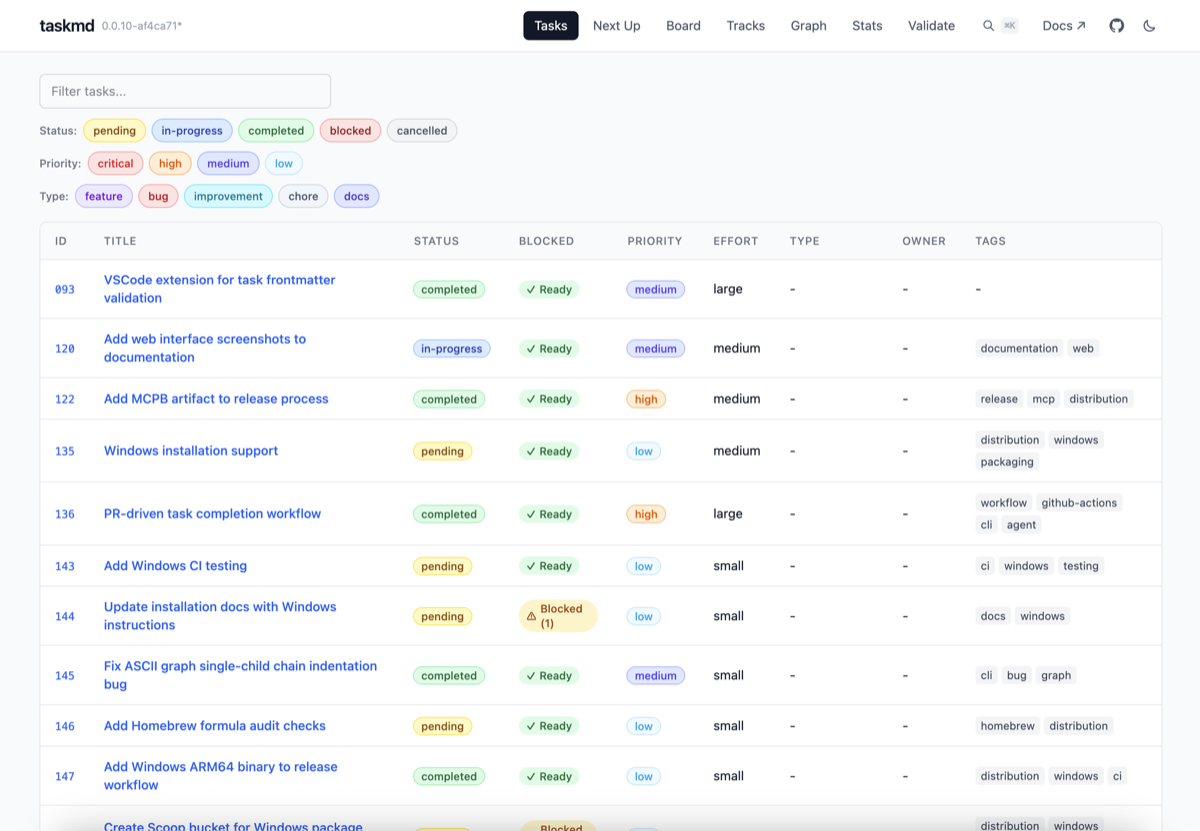
Features:
- Columns - ID, Title, Status, Blocked, Priority, Effort, Type, Phase (when phases are configured), Owner, Tags
- Sortable columns - click any header except Tags to sort
- Text filter - a text box narrows the table as you type, matching against every column
- Pill filters - toggle pills for Status, Priority, Effort, Type, and Phase; several values per field can be active at once. Click a tag in the Tags column to filter by it.
- Filters in the URL - active filters are written to the query string (
?status=pending&priority=high), so a filtered view can be bookmarked or shared - Clickable tasks - click ID or title to view full details
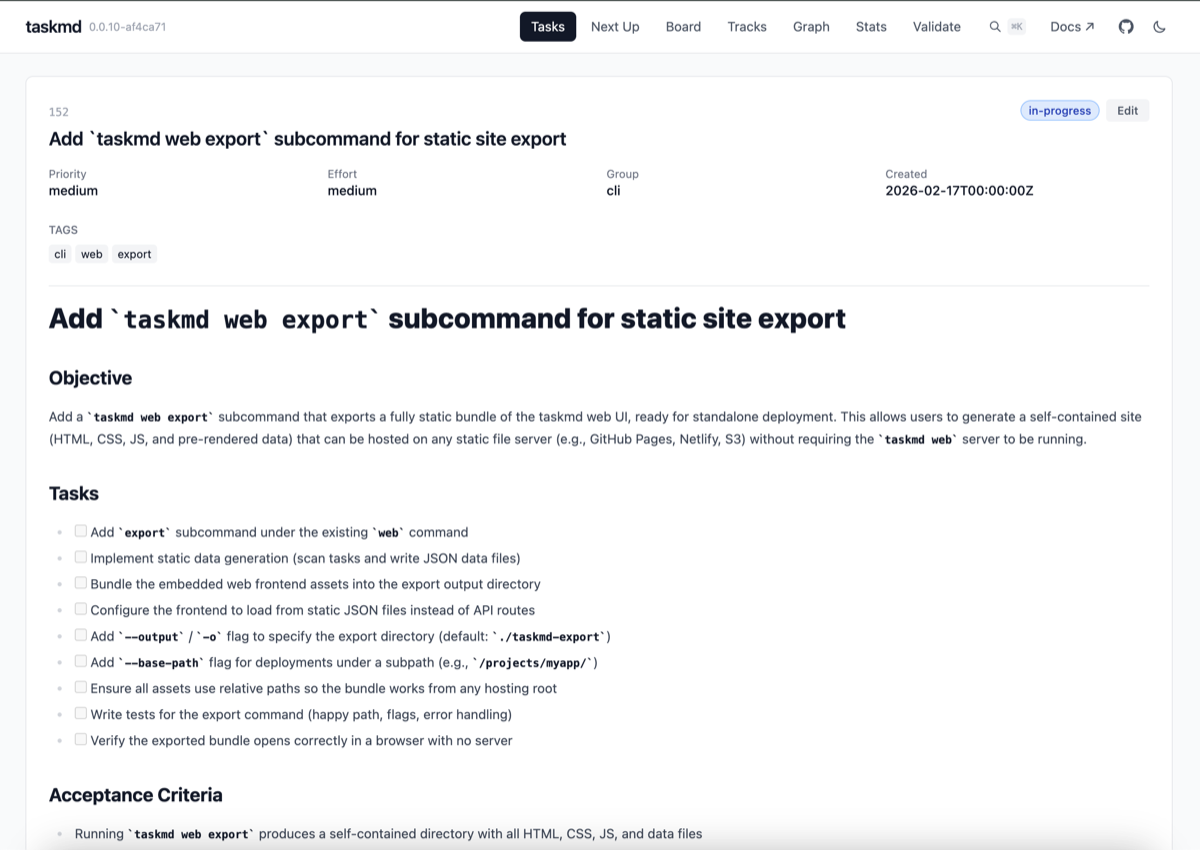
Click a task to open its detail page, showing full metadata and rendered markdown body.
Board View (Kanban)
URL: /board
Visual board with tasks organized in columns.
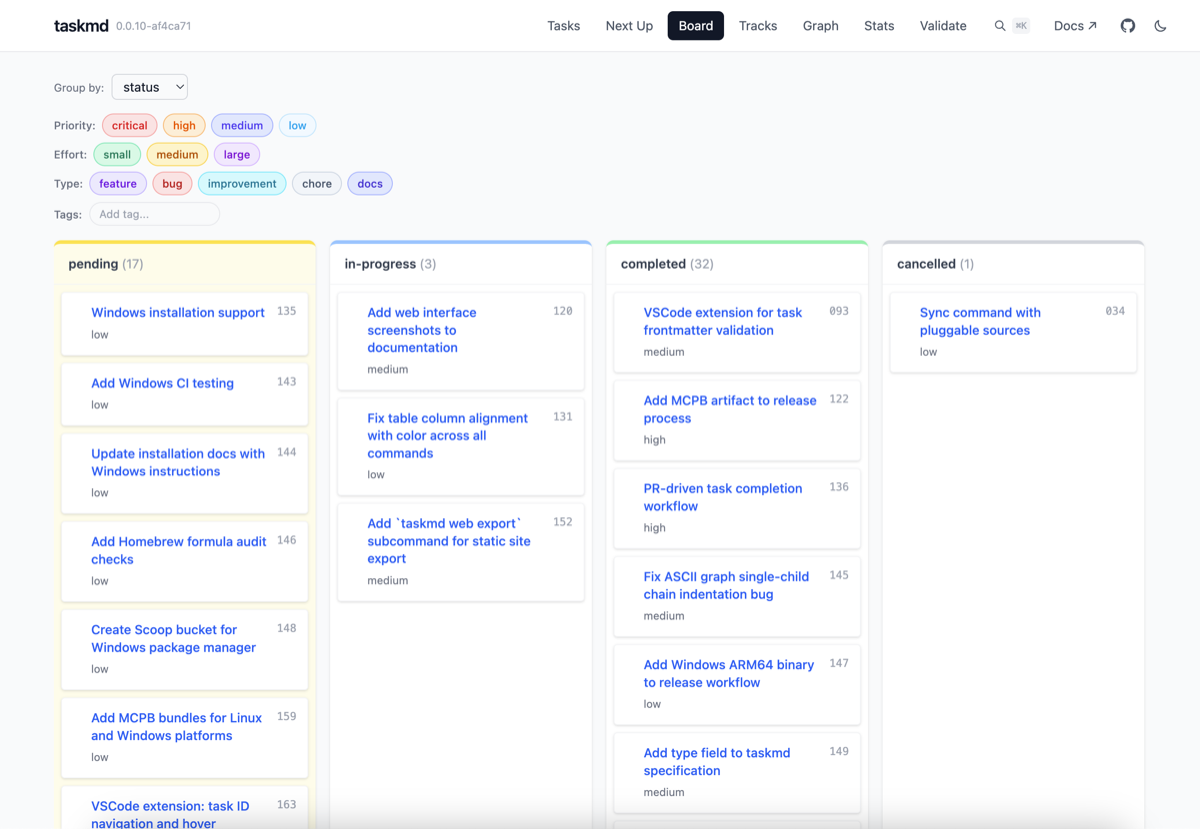
Group by options:
| Grouping | Columns | Best for |
|---|---|---|
| Status | pending, in-progress, in-review, completed, blocked, cancelled | Standard kanban workflow |
| Priority | critical, high, medium, low | Prioritization planning |
| Effort | small, medium, large (or your configured effort: vocabulary) | Capacity planning |
| Type | feature, bug, improvement, chore, docs | Work type classification |
| Group | Task groups (cli, web, docs...) | Team-based views |
| Tag | One per unique tag | Feature-based organization |
| Phase | One column per configured phase | Release/milestone planning |
Graph View
URL: /graph
Interactive dependency visualization using @xyflow/react (ReactFlow).
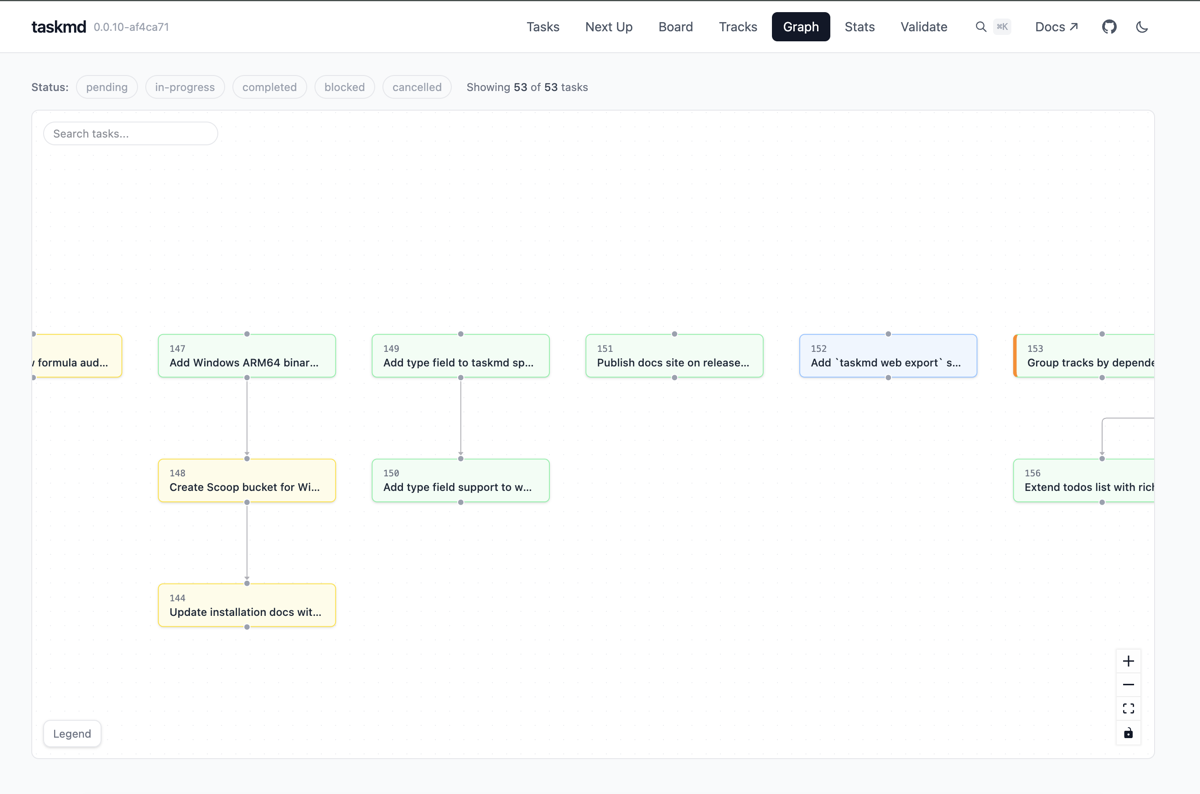
- Nodes represent tasks, arrows show dependencies
- Color-coded by status (yellow=pending, blue=in-progress, green=completed, red=blocked)
- Useful for understanding dependencies, finding critical paths, and spotting blockers
Stats View
URL: /stats
Project metrics and analytics.
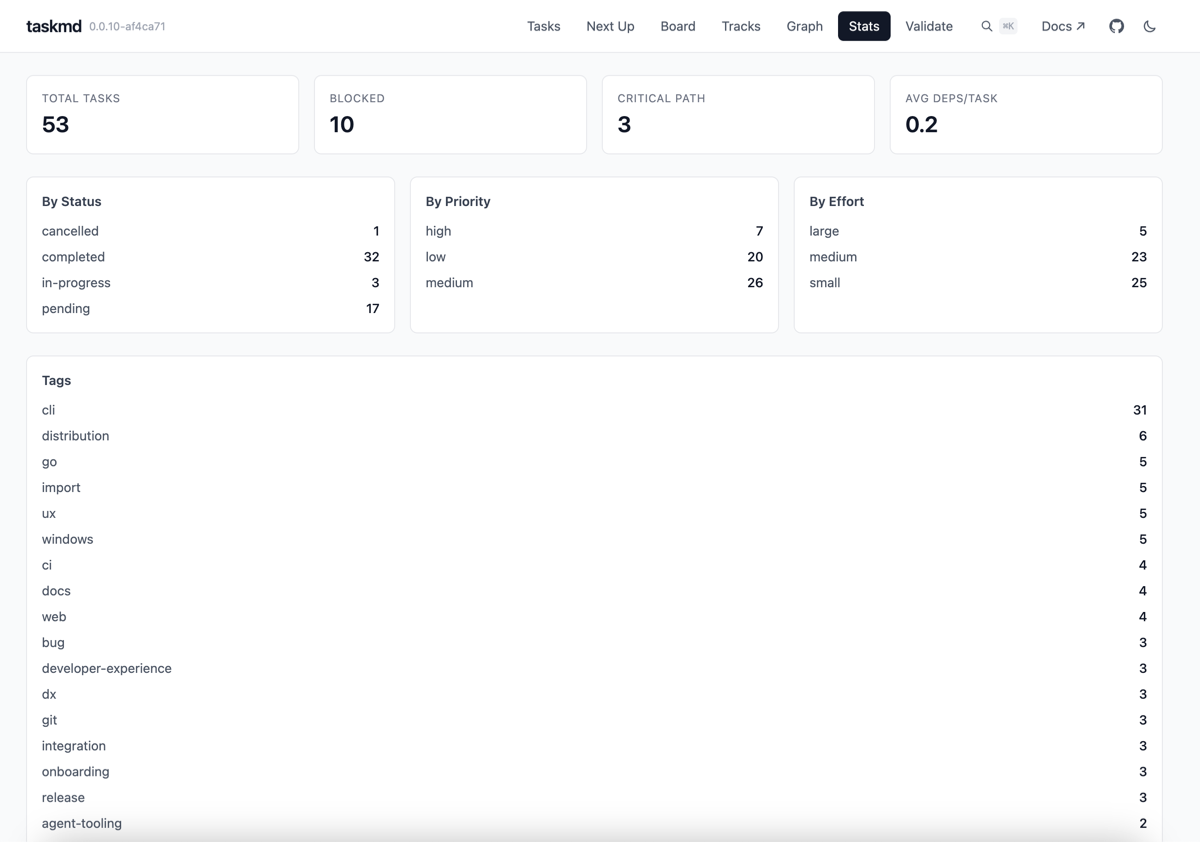
- Overview - total tasks, completion rate, status breakdown
- Priority breakdown - tasks by priority level
- Effort breakdown - tasks by effort estimate
- Dependency analysis - critical path length, max depth, average dependencies
Next View
URL: /next
Ranked task recommendations showing which tasks to work on next, using the same deterministic score as taskmd next (priority, critical path, downstream impact, effort, and phase order).
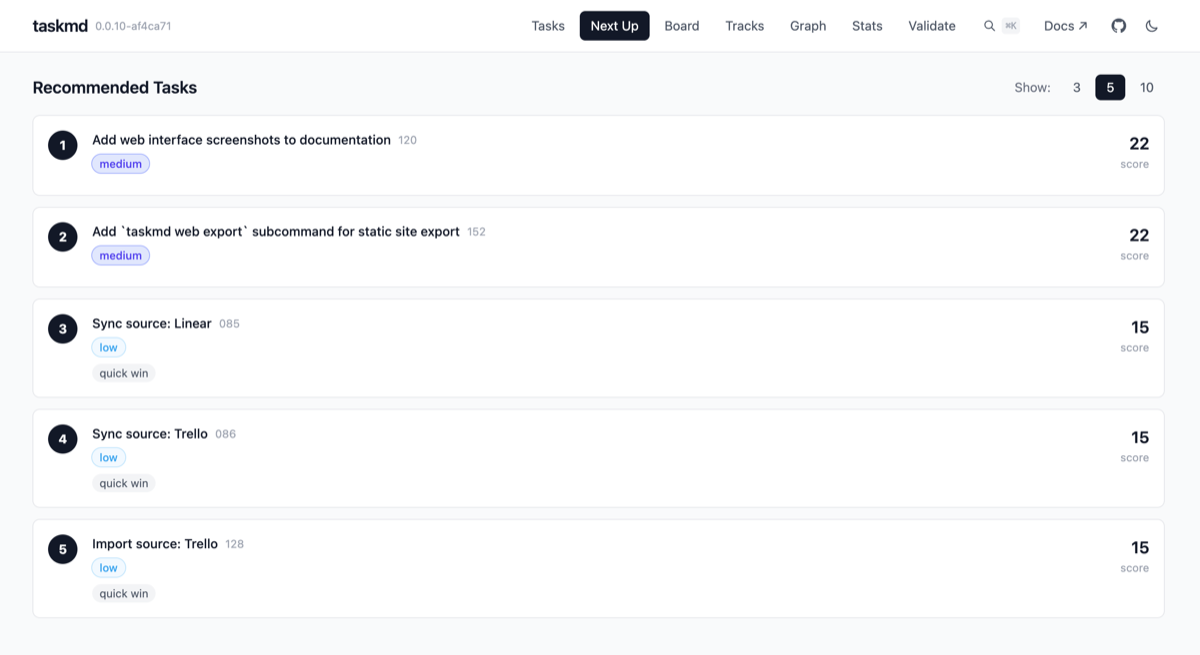
- Ranked task cards with priority scores
- Explains why each task is recommended (unblocked dependencies, priority, effort)
- Uses the same ranking as
taskmd next, including strict phase ordering from the selected project's.taskmd.yaml(also applied tonext.jsonin a static export)
Tracks View
URL: /tracks
Parallel work tracks showing tasks grouped by scope.
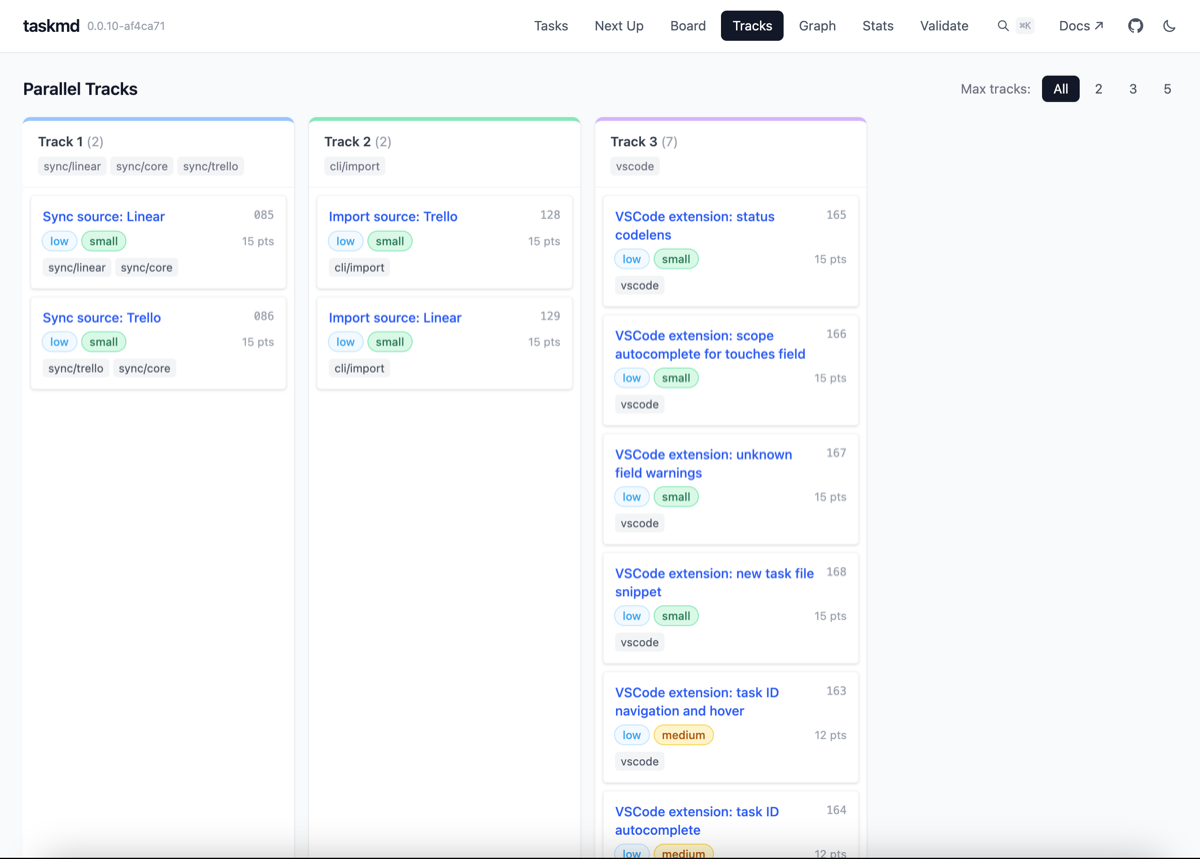
- Tasks organized into independent work streams
- Helps identify parallelizable work
Phases View
URL: /phases
Overview of project phases with progress tracking.
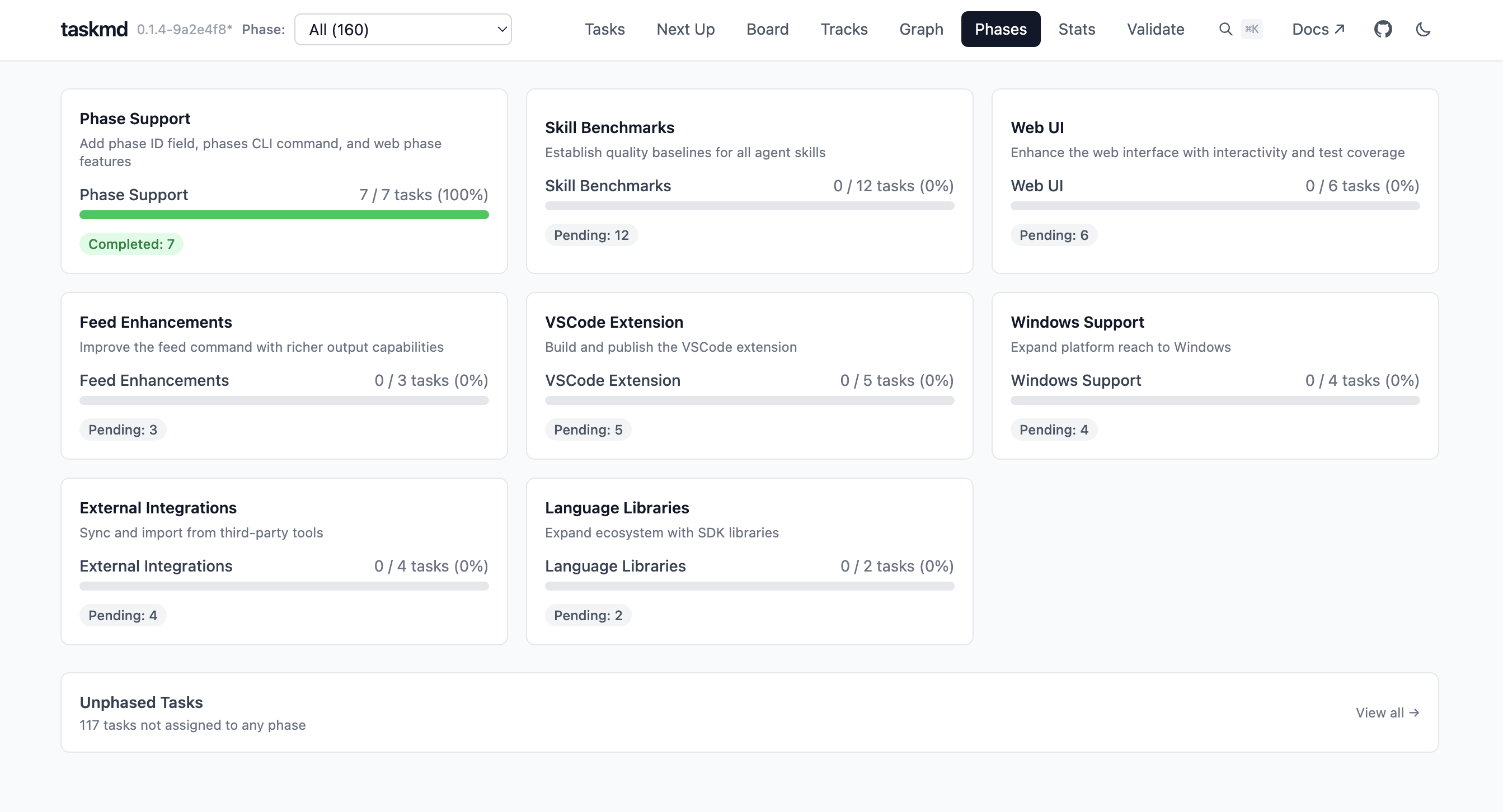
- Phase cards showing task counts, completion percentages, and progress bars
- Status badges summarizing pending, in-progress, and completed counts
- Unphased tasks section showing tasks not assigned to any phase
- Defined via the
phaseskey in.taskmd.yaml
Feed View
URL: /feed
Chronological activity feed showing recent task changes from git history and worklogs.
- Source filter - show all activity, git commits only, or worklog entries only
- Time range - filter by recency (24 hours, 7 days, 30 days, or all time)
- Scope filter - narrow to a specific task group (e.g.
cli) - Entries show timestamp, author, commit message or worklog note, and linked task IDs
- Git entries display per-file changes with field change badges (e.g. status transitions) and subtask completions
- Worklog entries are distinguished with a separate icon
Validate View
URL: /validate
Validation results for task files, showing errors and warnings.
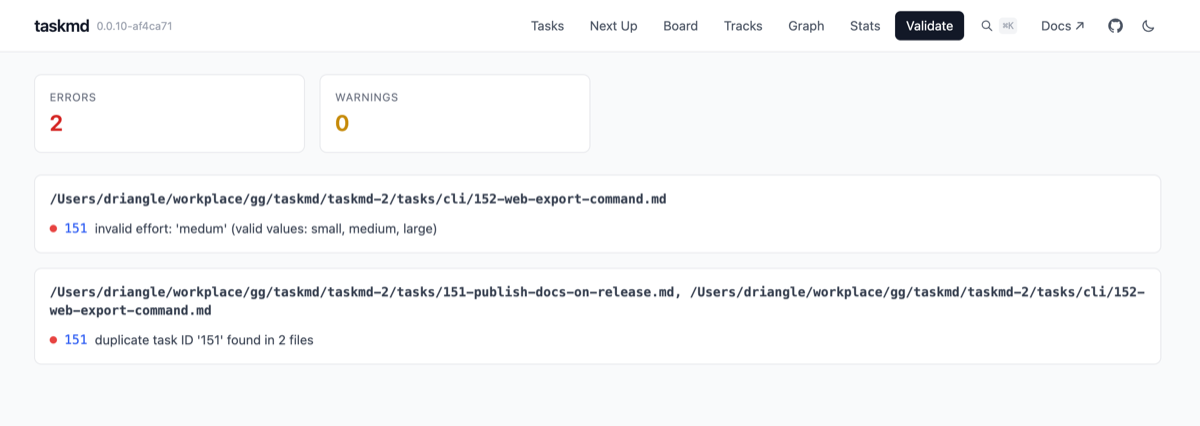
- Errors and warnings grouped by file
- Helps catch formatting issues, missing fields, and broken dependencies
Task Detail View
URL: /tasks/:id
Full detail page for a single task.
- Rendered markdown body with full task description
- Metadata panel showing status, priority, effort, type, tags, owner, and dependencies
- Worklog timeline (if worklogs exist for the task)
- Edit form for updating task fields directly in the browser (hidden in read-only mode)
Web Features
Multi-Project Support
When you have multiple projects registered (via taskmd projects register), the web interface shows a project selector in the navigation bar. Selecting a project scopes all views and API requests to that project's tasks. The project list is fetched from the /api/projects endpoint.
Task Editing
The web UI supports editing tasks directly from the browser:
Task Detail Edit Form:
- Click the Edit button on any task detail page
- Editable fields: title, status, priority, effort, type, owner, parent, tags, and body (markdown)
- Only changed fields are sent to the server
- Validation errors from the server are displayed inline
Board Drag-and-Drop:
- Drag task cards between columns to update the grouping field
- Supported when grouping by: status, priority, effort, or type
- Drag-and-drop is disabled when grouping by group, tag, or phase
- Visual feedback: columns highlight with a blue ring when dragging over
Both editing features are disabled when the server runs in --readonly mode.
Static Site Export
Generate a self-contained static site from your tasks:
# Export to default directory (./taskmd-export)
taskmd web export

# Custom output directory
taskmd web export -o ./public

# For subfolder deployment (e.g., GitHub Pages)
taskmd web export --base-path /demo/
The exported site includes the Tasks, Board, Graph, Next, Stats, Validate, and Tracks views and every task detail page, with pre-rendered data. The Phases and Feed views are not exported, and the exported board offers every grouping except phase. No backend server required — deploy to GitHub Pages, Netlify, S3, or any static host.
Read-Only Mode
Start the server in read-only mode to prevent any modifications:
taskmd web start --readonlyWhen enabled:
- The task edit form is hidden
- Board drag-and-drop is disabled
- The
PUT /api/tasks/{id}endpoint returns403 Forbidden - All read operations work normally
Board Filters
The Board page includes interactive pill-based filters for narrowing displayed tasks:
- Status — pending, in-progress, in-review, completed, blocked, cancelled
- Priority — critical, high, medium, low
- Effort — small, medium, large, or the vocabulary set by
effort:in.taskmd.yaml - Type — feature, bug, improvement, chore, docs
- Tags — autocomplete dropdown with all available tags
The effort pills, and the effort dropdown in the task edit form, follow the project's configured vocabulary. Custom values are colored on a generated low-to-high ramp.
Multiple values can be selected per category. The filter row automatically hides the field being used for grouping (e.g., status filters are hidden when grouping by status).
Graph Search and Highlighting
The Graph page includes a search box in the top-left corner for finding tasks in the dependency graph:
- Searches task IDs and titles (case-insensitive, instant results)
- Matched nodes are highlighted with a blue ring; unmatched nodes dim to 40% opacity
- The viewport auto-zooms to fit all matched nodes
- Match count is displayed next to the search box
- Clearing the search restores the previous viewport
Mobile Access
The web interface is responsive and touch-friendly, so it works in mobile browsers:
- Stats — mobile-optimized, the best view on a small screen
- Board — horizontal scroll; good for quick status checks (works well in portrait)
- Tasks — works well, but the table is wide (use landscape mode)
- Graph — may be hard to read on small screens; expect to zoom
Common Workflows
Daily Task Management
- Open web interface:
taskmd web start --open - Check Stats view for project health
- Switch to Board view (Group by: priority) to identify today's priorities
- Edit task files in your editor - watch the web UI update automatically
- Review Board view at end of day
Weekly Planning
- Stats view - review progress
- Board view - group by priority
- Graph view - identify dependencies and blockers
- Tasks view - filter by
status=pendingandpriority=high
Team Collaboration
- Share screen with the web interface during standups
- Use Board view grouped by status for status discussions
- Use Graph view to discuss dependencies
- Use Stats view for sprint reviews
API Access
The web server exposes a JSON API you can access directly. All endpoints return JSON unless noted otherwise.
Task Endpoints
| Method | Path | Description |
|---|---|---|
GET | /api/tasks | List all tasks (excludes body content) |
GET | /api/tasks/{id} | Get a single task with full body and worklog metadata |
GET | /api/tasks/{id}/worklog | Get worklog entries for a task |
PUT | /api/tasks/{id} | Update task fields (disabled in read-only mode) |
GET | /api/search?q=<query> | Full-text search across task titles and bodies |
View Endpoints
| Method | Path | Description |
|---|---|---|
GET | /api/board?groupBy=<field> | Tasks grouped by field (status, priority, effort, type, group, tag, phase) |
GET | /api/graph | Dependency graph as JSON (nodes and edges) |
GET | /api/graph/mermaid | Dependency graph in Mermaid syntax (returns text/plain) |
GET | /api/stats | Project statistics and metrics |
GET | /api/next?limit=<n>&filter=<expr> | Scored task recommendations with reasons (filter is repeatable) |
GET | /api/tracks?filter=<expr>&scope=<s>&limit=<n> | Parallel work tracks grouped by scope overlap |
GET | /api/feed?source=<s>&since=<d>&scope=<g>&limit=<n> | Chronological activity feed from git and worklogs |
GET | /api/validate | Validation errors and warnings for all tasks |
Other Endpoints
| Method | Path | Description |
|---|---|---|
GET | /api/projects | List registered projects (for multi-project setups) |
GET | /api/config | Server config (read-only status, version, phases, effort vocabulary) |
GET | /api/events | Server-Sent Events stream for live reload |
Examples
# List all tasks
curl http://localhost:8080/api/tasks

# Get a single task with full body
curl http://localhost:8080/api/tasks/042

# Get worklog for a task
curl http://localhost:8080/api/tasks/042/worklog

# Update a task's status
curl -X PUT http://localhost:8080/api/tasks/042 \
  -H 'Content-Type: application/json' \
  -d '{"status": "in-progress"}'

# Search tasks
curl 'http://localhost:8080/api/search?q=authentication'

# Board grouped by priority
curl 'http://localhost:8080/api/board?groupBy=priority'

# Top 3 recommended tasks
curl 'http://localhost:8080/api/next?limit=3'

# Graph in Mermaid format
curl http://localhost:8080/api/graph/mermaid

# Parallel work tracks
curl http://localhost:8080/api/tracks

# Validation results
curl http://localhost:8080/api/validate

# SSE stream (keeps connection open)
curl -N http://localhost:8080/api/events
PUT /api/tasks/
Send a JSON body with only the fields you want to change:
{
  "title": "Updated title",
  "status": "in-progress",
  "priority": "high",
  "effort": "small",
  "type": "bug",
  "owner": "alice",
  "parent": "010",
  "tags": ["backend", "urgent"],
  "body": "# Updated description\n\nNew content..."
}
Valid values:
- status:
pending,in-progress,in-review,blocked,completed,cancelled - priority:
low,medium,high,critical - effort:
small,medium,large - type:
feature,bug,improvement,chore,docs
Returns the updated task detail on success, or a 400 with validation errors for invalid values.
Worktree Overlay Fields
When the served directory is inside a git repository with multiple worktrees (and worktree_scope is not set to isolated in .taskmd.yaml), the API serves the merged cross-worktree view: each worktree has its own branch-local copy of the task files, and the server combines their coordination state.
Task payloads from /api/tasks and /api/tasks/{id} gain additive fields — existing fields keep their meaning (status and owner still describe the local copy):
| Field | Description |
|---|---|
effective_status | Most advanced status across all worktree copies (pending < blocked < in-progress < in-review < cancelled < completed; ties broken by newest file) |
effective_owner | owner on the winning copy |
worktree | Basename of the winning copy's worktree (empty when the local copy wins) |
branch | Branch checked out in that worktree |
remote_only | true when the task exists only in a sibling worktree |
worktrees | Per-copy breakdown (worktree, branch, status, owner, local) on the detail endpoint when copies diverge |
Aggregate endpoints (/api/board, /api/graph, /api/stats, /api/next, /api/tracks, /api/search) operate on effective statuses, and /api/next never recommends a task claimed in a sibling worktree. Board cards from /api/board additionally carry worktree and remote_only so the UI can badge tasks whose winning copy is remote. Edits stay strictly local: a PUT targeting a task that exists only in a sibling worktree returns 409 Conflict with the guard message instead of writing.
GET /api/config gains a worktree object while the overlay is active — {"name": "<local worktree>", "siblings": <count>} — which the web UI uses for its header indicator ("worktree agent-b — 3 siblings"). It is omitted in single-worktree repos.
Live reload covers sibling worktrees too — a claim made in another worktree reaches connected browsers over the SSE stream, and git worktree add/ remove is picked up without restarting the server. Static exports bake the effective view in at export time. In single-worktree repos none of these fields appear and behavior is unchanged.
Advanced Usage
Remote Access
# Start server
taskmd web start --port 8080

# Port forward via SSH
ssh -L 8080:localhost:8080 user@remote-host

# Access from local browser
open http://localhost:8080
Multiple Projects
Run separate instances on different ports:
taskmd web start --task-dir ~/project1/tasks --port 8081
taskmd web start --task-dir ~/project2/tasks --port 8082
Docker
The taskmd web server is available as a Docker image from GitHub Container Registry. The image includes the web frontend and defaults to running taskmd web start on port 8080. Mount your tasks directory to /tasks inside the container.
# Run the web dashboard with your local tasks directory
docker run -p 8080:8080 -v $(pwd)/tasks:/tasks ghcr.io/driangle/taskmd:latest

# Custom port
docker run -p 3000:3000 -v $(pwd)/tasks:/tasks ghcr.io/driangle/taskmd:latest taskmd web start --port 3000

# Read-only mode
docker run -p 8080:8080 -v $(pwd)/tasks:/tasks:ro ghcr.io/driangle/taskmd:latest taskmd web start --readonly
Docker Compose:
services:
  taskmd:
    image: ghcr.io/driangle/taskmd:latest
    ports:
      - "8080:8080"
    volumes:
      - ./tasks:/tasks
Binding inside the container
taskmd web start binds 127.0.0.1 by default, which would be unreachable through a published port. The image sets TASKMD_WEB_HOST=0.0.0.0 for you, so no extra flag is needed. If you override the command with your own --host, keep it at 0.0.0.0.
TIP
You can also use the Docker image to run any taskmd CLI command, not just the web server. For example: docker run -v $(pwd)/tasks:/tasks ghcr.io/driangle/taskmd:latest taskmd list
Troubleshooting
Server Won't Start
# Check if port is in use
lsof -i :8080

# Use a different port
taskmd web start --port 3000
No Tasks Showing
- Verify the correct directory:
--task-dir ./tasks - Ensure files have
.mdextension and valid YAML frontmatter - Check browser console (F12) for errors
- Run
taskmd validate ./tasksfrom the CLI
Live Reload Not Working
- Check browser console (F12) for SSE connection messages
- Verify file is saved (some editors use temporary files)
- Try refreshing the page manually
- Restart the server
Graph View Is Slow
The web interface handles hundreds of tasks well, but the Graph view can become slow with more than ~200 tasks. Use filtering to reduce the number of displayed tasks, or organize tasks into subdirectories.