Tutorial: Your First Project
This tutorial walks you through setting up taskmd and managing tasks from scratch. By the end, you'll have a working project with tasks, dependencies, and a web dashboard.
What is taskmd?
taskmd is a markdown-based task management tool designed for developers and AI coding assistants. Tasks are plain .md files with YAML frontmatter that live in your repository alongside your code. You manage them through a CLI, a web dashboard, or directly in your text editor.
Who is it for?
- Developers who want task management that lives with their code
- Teams using AI coding assistants (Claude Code, Cursor, Codex, Gemini CLI, Windsurf)
- Anyone who prefers plain text over SaaS tools
Prerequisites
- A terminal (macOS, Linux, or WSL on Windows)
- A text editor
- Go 1.25+ (only if building from source)
Step 1: Install taskmd
The easiest way is via Homebrew:
brew tap driangle/tap
brew install taskmd
Verify the installation:
taskmd --versiontaskmd version 0.8.0
Git commit: 8ea09221b3130b022c864d4c726f4f9c7384826d
Built: 2026-09-19T20:19:27ZSee Installation for other options including pre-built binaries and building from source.
Step 2: Initialize your project
Navigate to your project directory and run taskmd init:
cd my-project
taskmd init
The init command walks you through setup interactively. It creates:
- A
tasks/directory for your task files - A
.taskmd.yamlconfiguration file tasks/TASKMD_SPEC.md, the task format specification- An agent configuration file in
tasks/(if you use Claude Code, Codex, or Gemini) - Task templates in
.taskmd/templates/for theadd --templatecommand
You can also run it non-interactively:
taskmd init --task-dir ./tasks --claudeAfter init, your project looks like this:
my-project/
├── .taskmd.yaml
├── .taskmd/
│   └── templates/
│       ├── bug.md
│       ├── chore.md
│       └── feature.md
├── tasks/
│   ├── CLAUDE.md
│   └── TASKMD_SPEC.md
└── ... (your existing files)
Step 3: Create your first task
Use taskmd add to create a task:
taskmd add "Set up project repository" --priority high --effort small --tags setupCreated task 001: /path/to/my-project/tasks/001-set-up-project-repository.mdThis generates a markdown file with frontmatter, a slug-based filename, and a body skeleton to fill in:
---
id: "001"
title: "Set up project repository"
status: pending
priority: high
effort: small
dependencies: []
tags: ["setup"]
created_at: 2026-10-02
---

# Set up project repository

## Objective

<!-- Describe the goal of this task -->

## Tasks

- [ ] TODO

## Acceptance Criteria

- TODO
Open it in your editor and replace the placeholders:
---
id: "001"
title: "Set up project repository"
status: pending
priority: high
effort: small
dependencies: []
tags: ["setup"]
created_at: 2026-10-02
---

# Set up project repository

## Objective

Initialize the project repository with basic structure and tooling.

## Tasks

- [ ] Create directory structure
- [ ] Add .gitignore
- [ ] Initialize git repository
- [ ] Create README

## Acceptance Criteria

- Repository is initialized with git
- Basic project structure is in place
- README documents how to get started
Step 4: Add more tasks with dependencies
Create a second task that depends on the first:
taskmd add "Write project documentation" --priority medium --effort medium \
  --tags documentation --depends-on 001
Created task 002: /path/to/my-project/tasks/002-write-project-documentation.mdAnd a third task that depends on both:
taskmd add "Deploy to staging" --priority high --effort small \
  --tags deployment --depends-on 001,002
Created task 003: /path/to/my-project/tasks/003-deploy-to-staging.mdStep 5: List and filter tasks
See all your tasks:
taskmd listid title status priority file
--- --------------------------- ------- -------- ----------------------------------
001 Set up project repository pending high 001-set-up-project-repository.md
002 Write project documentation pending medium 002-write-project-documentation.md
003 Deploy to staging pending high 003-deploy-to-staging.mdUse --columns to show other fields, for example taskmd list --columns id,title,effort,tags.
Filter by priority or status:
# High-priority tasks only
taskmd list --filter priority=high

# Pending tasks sorted by priority
taskmd list --filter status=pending --sort priority
Step 6: Update task status
Start working on a task:
taskmd set 001 --status in-progressUpdated task 001 (Set up project repository):
status: pending -> in-progressWhen you're done, mark it as completed:
taskmd set 001 --doneUpdated task 001 (Set up project repository):
status: in-progress -> completed
completed_at: (unset) -> 2026-10-02You can also update other fields:
# Change priority
taskmd set 002 --priority high

# Add tags
taskmd set 002 --add-tag api --add-tag backend

# Preview changes without writing
taskmd set 002 --priority critical --dry-run
Step 7: Visualize the dependency graph
See how your tasks relate to each other:
taskmd graph --format ascii[002] Write project documentation
└── [003] Deploy to stagingCompleted tasks are hidden by default, which is why task 001 does not appear. Pass --all to include every task:
taskmd graph --format ascii --all[001] Set up project repository ✓
├── [002] Write project documentation
│ └── [003] Deploy to staging
└── [003] Deploy to staging (see above)Other graph formats are available for different use cases:
# Mermaid diagram (embed in GitHub READMEs)
taskmd graph --format mermaid

# Graphviz DOT (generate PNG images)
taskmd graph --format dot | dot -Tpng > deps.png

# JSON (for scripting)
taskmd graph --format json
Step 8: Get task recommendations
Ask taskmd what to work on next:
taskmd nextRecommended tasks:
# ID Title Priority Effort File Reason
- --- --------------------------- -------- ------ ---------------------------------- ---------------------------------
1 002 Write project documentation medium medium 002-write-project-documentation.md on critical path, unblocks 1 taskTask 003 is not recommended because it still depends on 002. Add --explain to see the score behind each recommendation.
taskmd recommends tasks based on:
- Priority -- higher priority scores higher
- Dependencies -- only tasks with satisfied dependencies are suggested
- Downstream impact -- tasks that unblock other work score higher
- Effort -- smaller tasks get a boost as quick wins
Filter recommendations:
# Quick wins only
taskmd next --quick-wins

# Critical path tasks
taskmd next --critical --limit 1

# Filter by tag
taskmd next --filter tag=deployment
Step 9: Validate your tasks
Check all task files for errors:
taskmd validate✓ All 3 task(s) are validValidation catches:
- Missing required fields (id, title)
- Invalid field values
- Duplicate task IDs
- Missing dependency references
- Circular dependencies
Use strict mode for additional warnings about recommended fields:
taskmd validate --strictWith the flat tasks/ layout from this tutorial, strict mode warns that each task has no group. Groups are subdirectories of tasks/; see Best Practices for when to use them.
Step 10: Launch the web dashboard
Start the web interface:
taskmd web start --openThis opens a browser with an interactive dashboard at http://localhost:8080.
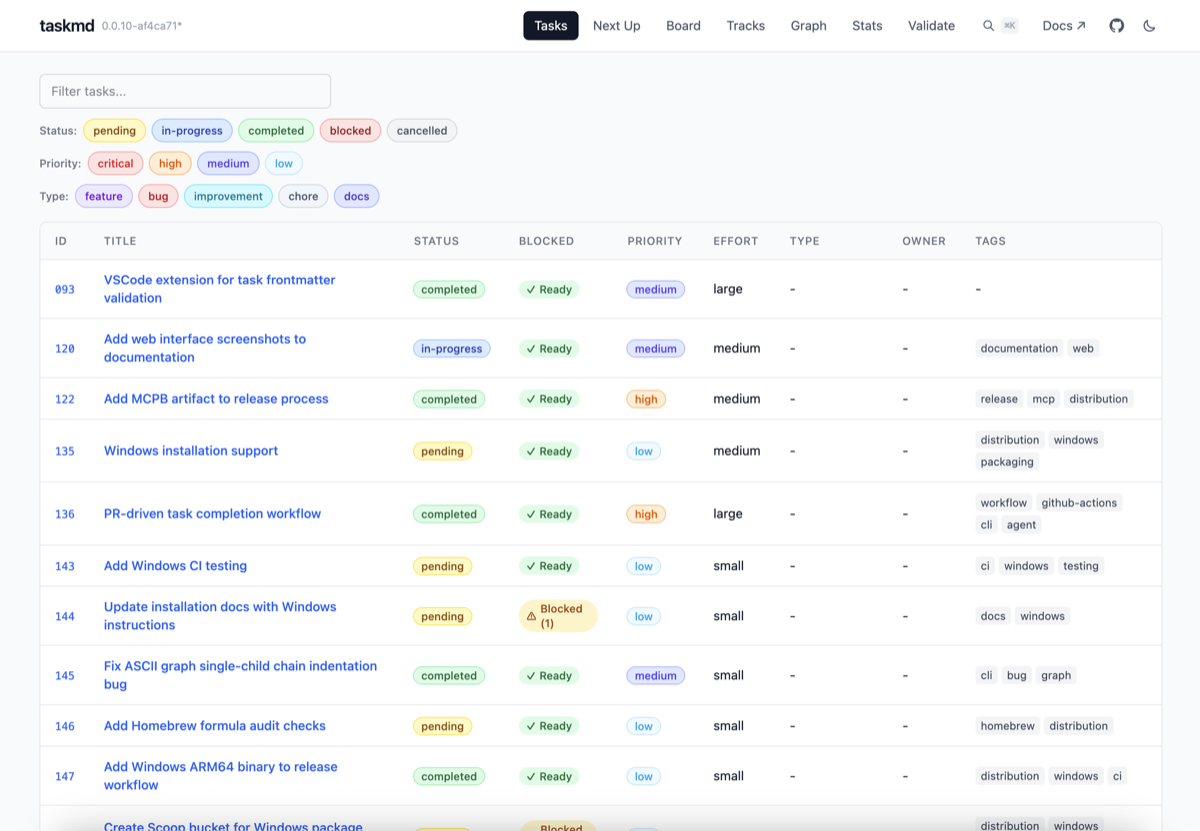
The dashboard includes several views:
| View | What it shows |
|---|---|
| Tasks | Sortable, filterable task table with search |
| Board | Kanban board grouped by status, priority, effort, type, group, tag, or phase, with drag-and-drop |
| Graph | Interactive dependency graph with search and highlighting |
| Stats | Project metrics -- status, priority, and effort breakdowns, critical path |
| Next | Ranked recommendations with the reason for each, the same scoring as taskmd next |
| Tracks | Parallel work streams based on scope overlap |
| Phases | Progress per configured phase |
| Feed | Recent task activity from git history |
| Validate | Validation results with errors and warnings |
The web interface updates in real time when you edit task files -- no page refresh needed.
You can also edit tasks directly in the browser by clicking a task and using the edit form.
Step 11: Use taskmd with AI assistants
taskmd works with AI coding assistants in three ways: a Claude Code plugin, an MCP server for any client that supports it, and plain file access for everything else.
Claude Code
Install the taskmd plugin for slash command integration:
claude plugin marketplace add driangle/taskmd
claude plugin install taskmd@taskmd-marketplace --scope project
Then use slash commands in your Claude Code session:
/taskmd:next-task              # Find what to work on
/taskmd:do-task 002            # Start working on task 002
/taskmd:list-tasks             # List all tasks
/taskmd:add-task Fix the bug   # Create a new task
/taskmd:complete-task 002      # Mark task as done
MCP Server (Cursor, Windsurf, Copilot, and others)
taskmd includes a built-in MCP server that works with any tool supporting the Model Context Protocol:
taskmd mcpConfigure it in your tool's MCP settings. For example, in .mcp.json:
{
  "mcpServers": {
    "taskmd": {
      "command": "taskmd",
      "args": ["mcp"]
    }
  }
}
Any AI assistant
Since tasks are plain markdown files, any AI assistant with file access can read and write them directly -- no plugins required. Point the assistant at your tasks/ directory and it can manage tasks by editing the files.
What's next?
You now have a working taskmd project with tasks, dependencies, and multiple interfaces. Here are some things to explore:
- Best Practices -- recommended workflows, project organization, and tips
- Core Concepts -- understand statuses, priorities, dependencies, and file organization
- CLI Guide -- full command reference with advanced usage
- Web Interface -- detailed web dashboard documentation
- Configuration -- customize taskmd with
.taskmd.yaml - Claude Code Plugin -- deep dive into AI assistant integration
- Task Specification -- full format reference for task files